Maven Tutorial for Beginners From pom to Package and Test
Create a Maven project, read the pom, add a dependency and a test, then build a jar with one command and understand the directory layout.
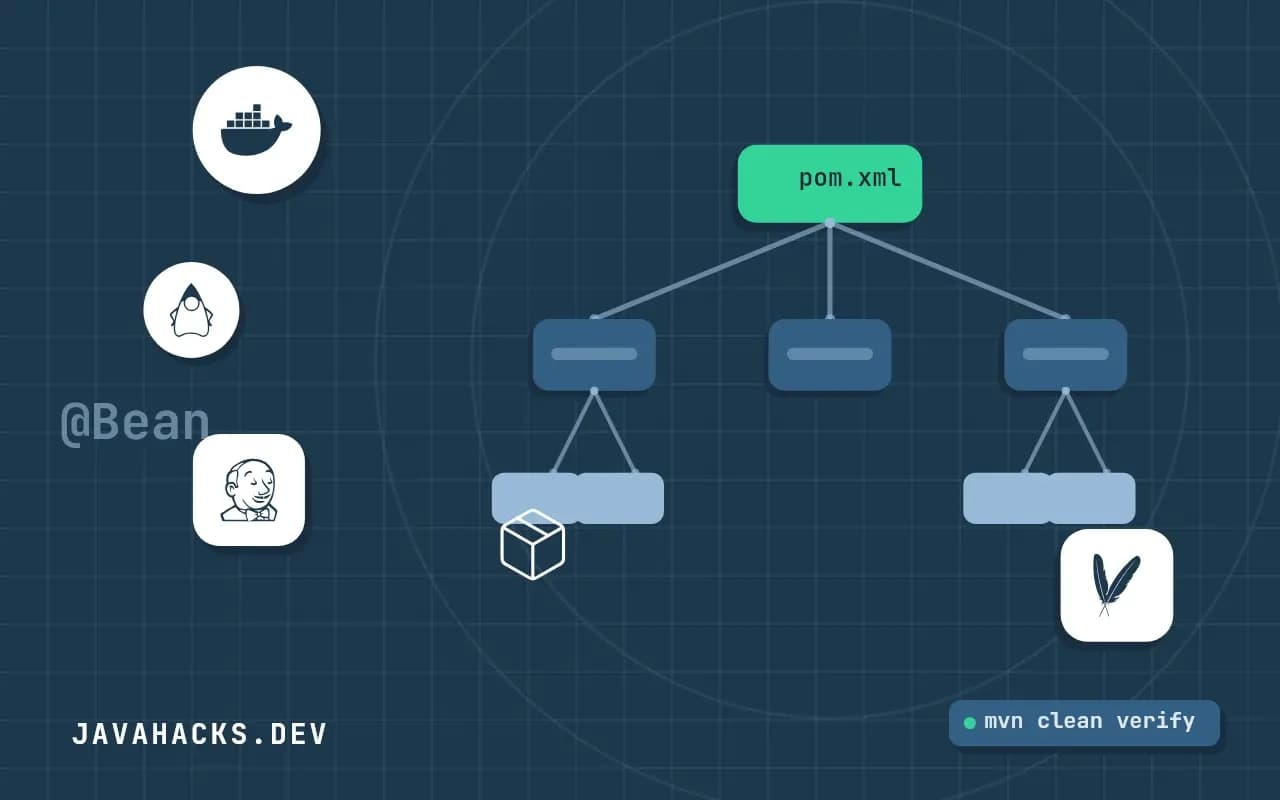
Maven is a build tool that works from a description of the project instead of a script of commands. You state what the project is and what it depends on in a file called pom.xml, follow a standard directory layout, and Maven knows how to compile, test and package it. That convention is both the appeal and the learning curve: little to write, but the rules are fixed. This tutorial creates a project, reads its POM line by line, adds a dependency and a test, builds a jar, and lists the commands you will use most. It uses Maven 3.9 and JDK 25.
Create the project
You need a JDK and Maven. Check both:
java -version
mvn -version
mvn -version also prints the Java home that Maven uses, which is the first thing to check when a build behaves oddly; a mismatch between that path and the JDK you intended causes the error in JAVA_HOME not defined correctly. Create the project from an archetype, a project template:
mvn archetype:generate -DgroupId=dev.javahacks -DartifactId=hello \
  -DarchetypeArtifactId=maven-archetype-quickstart -DinteractiveMode=false
Maven creates a directory called hello. The layout is the part to memorise:
hello/
  pom.xml
  src/main/java/dev/javahacks/App.java
  src/test/java/dev/javahacks/AppTest.java
Production code goes in src/main/java, tests in src/test/java, resources in src/main/resources and src/test/resources. Maven compiles and packages these locations with no configuration, and compiled output goes to target/. Everything under target/ is generated and can be deleted at any time, so it does not belong in version control.
Read the pom
<project xmlns="http://maven.apache.org/POM/4.0.0">
  <modelVersion>4.0.0</modelVersion>

  <groupId>dev.javahacks</groupId>
  <artifactId>hello</artifactId>
  <version>1.0-SNAPSHOT</version>
  <packaging>jar</packaging>

  <properties>
    <maven.compiler.release>25</maven.compiler.release>
    <project.build.sourceEncoding>UTF-8</project.build.sourceEncoding>
  </properties>

  <dependencies>
    <dependency>
      <groupId>org.junit.jupiter</groupId>
      <artifactId>junit-jupiter</artifactId>
      <version>5.12.2</version>
      <scope>test</scope>
    </dependency>
  </dependencies>
</project>
The first block is the project's coordinates: groupId (usually a reversed domain), artifactId (the project name) and version. Together dev.javahacks:hello:1.0-SNAPSHOT identify the artifact anywhere in the Maven world. SNAPSHOT means a version under development that may change; a release version has no suffix and is never overwritten.
packaging says what to build: jar, war or pom. The properties hold values used elsewhere. maven.compiler.release sets the Java version for compilation, and it is better than the older source and target pair because it also checks against the JDK's API of that release. If you set it higher than the JDK that runs Maven, you see invalid target release, which is explained in the invalid target release fix.
The archetype may generate an older compiler setting and JUnit 4. Replace them with the values above before you go on. The archetype's output ages quickly, and editing it is normal.
Write code and a test
package dev.javahacks;

public class App {

    public static String greet(String name) {
        return "Hello, " + name;
    }

    public static void main(String[] args) {
        System.out.println(greet("Maven"));
    }
}package dev.javahacks;
import static org.junit.jupiter.api.Assertions.assertEquals;
import org.junit.jupiter.api.Test;
class AppTest {
@Test
void greets_by_name() {
assertEquals("Hello, Ada", App.greet("Ada"));
}
}The test class sits in the same package as the code it tests, in the mirror directory under src/test/java. Maven's Surefire plugin finds classes whose names match *Test, Test* or *Tests and runs them.
Build
mvn packageMaven runs the default lifecycle up to package: it compiles the main code, compiles the tests, runs them, and builds target/hello-1.0-SNAPSHOT.jar. A failing test stops the build before the jar exists. The first run downloads plugins and dependencies from Maven Central into ~/.m2/repository, so it is slow and needs network access; later runs are fast. If the download fails, the error and its causes are in could not resolve dependencies.
Each lifecycle phase includes all earlier ones. mvn test stops after testing, mvn verify goes further to integration checks, and mvn install copies the jar into your local repository so other projects can depend on it. The phases and the goals bound to them are laid out in lifecycle phases and goals. Run the program with java -cp target/hello-1.0-SNAPSHOT.jar dev.javahacks.App; a jar with a Main-Class manifest entry needs plugin configuration, which comes later.
Add a dependency
To use a library, add a <dependency> block with its coordinates. Search for them at central.sonatype.com. For example, to use Apache Commons Lang:
<dependency>
  <groupId>org.apache.commons</groupId>
  <artifactId>commons-lang3</artifactId>
  <version>3.17.0</version>
</dependency>
Maven downloads the library and everything it depends on, the transitive dependencies. The scope controls where it is on the classpath: compile (the default) everywhere, test for tests only, provided for something the runtime supplies, runtime for something needed only when running. The differences are in dependency scopes.
Useful commands
mvn clean package          # delete target/ first, then build
mvn -DskipTests package    # build without running tests
mvn dependency:tree        # print the resolved dependencies
mvn -q test                # quiet output
mvn -o package             # offline, using only the local repository
mvn clean is a separate lifecycle from the default one, which is why it has to be named. dependency:tree is the command to run when a library shows up at an unexpected version. Add -X for debug output when you cannot see why something happens.
What Maven does when you run a phase
When you run mvn package, Maven reads the POM, builds the effective model by merging in defaults and any parent, and resolves the plugins bound to each lifecycle phase for the jar packaging. For this project that means the compiler plugin for compile and testCompile, Surefire for test, and the jar plugin for package. The dependencies it downloads are cached, and the cache is the reason a clean machine's first build is slow. Plugins are versioned like libraries, and a build with no plugin version declared uses the default of your Maven release. For reproducible builds, pin the plugin versions in pluginManagement, so upgrading Maven does not silently change the compiler or the test runner.
The effective POM is worth looking at once. mvn help:effective-pom prints the full model after inheritance, which shows every default you never wrote and explains most surprises. If you later add a parent such as Spring Boot's, the same command shows what it contributed.
Common first-week errors
A build that works in the IDE and fails in Maven is usually a version mismatch between the IDE's JDK and maven.compiler.release. A test that never runs has a name Surefire does not match, or uses JUnit 5 annotations with an old Surefire; use version 3.x. A SNAPSHOT dependency that cannot be found was never installed locally; run mvn install in the project that produces it. And an editor that shows red imports after you added a dependency needs a reload of the Maven project, since the IDE reads the POM separately from the command line.
Add the wrapper
mvn wrapper:wrapper -Dmaven=3.9.9This writes mvnw, mvnw.cmd and a .mvn/ directory. Commit them. From then on, ./mvnw package downloads the right Maven version on first use, so every developer and the CI server build with the same one and nobody needs Maven installed. It is the single most useful habit to adopt early.
Where this tutorial stops
A real project adds plugin configuration, a parent POM or Spring Boot's, profiles, and multiple modules. The conventions you learned stay the same. The introductions in the Maven guides are worth reading next: Maven in five minutes and the POM reference.